What is Document Management?
Document Management
Document management links team files to the clients, projects, and people they belong to, instead of scattering them across folders and email attachments.
Document management is the process of storing, organizing, retrieving, and sharing files in a way that keeps them connected to the work they belong to. A contract lives next to the client it covers. A brief lives inside the project it describes. An employee's tax forms live on their profile.
Without a document management system, files scatter. Contracts end up in someone's personal Google Drive folder. Briefs get attached to Slack messages and buried. HR documents live in email threads. When anyone needs a file, whether during a client call, a project handoff, or an audit, finding it takes time no one has.
A document management system solves the location problem and the access problem at once: files live where they're needed, and only the right people can see them.
What a Document Management System Does
A document management system (DMS) is software that centralizes file storage and links documents to the entities they relate to: clients, projects, team members, or tasks. The core jobs are storage, organization, access control, and retrieval.
- Storage: files are uploaded to a central location, not scattered across personal drives or email
- Organization: folders, tags, and metadata keep files grouped by client, project, or team
- Access control: who can see which files is defined by role, not by who forwarded an email
- Retrieval: files are found in seconds because they're stored next to the context they belong to
- Version history: multiple versions of a document are tracked so the latest is never ambiguous
Folder Structures That Hold Up Over Time
Most teams set up folders once and then stop maintaining them. New files go into the root directory or into a 'misc' folder. After six months, the structure is useless.
Folder structures that stay organized have a consistent rule for how new files get filed. The rule is usually based on entity type: a folder for each client, a folder for each project, a folder for each team member. Files go into the matching entity folder, not the one that's easiest to reach.
| Folder Type | What Goes In | Who Accesses It |
|---|---|---|
| Clients | Contracts, briefs, client-sent assets, signed proposals | Project managers, account managers, admins |
| Projects | Deliverables, working files, task attachments, references | Project team members, admins |
| Team | Contracts, tax forms, HR documents, certifications | Admin and owner only |
| Custom | Company templates, brand assets, shared resources | Defined per folder |
Access Control: Who Sees Which Files
Without role-based access control, file sharing defaults to the path of least resistance: everything shared with everyone, or nothing shared because per-file permissions take too long.
Role-based access assigns document visibility based on what a team member's role requires. An admin or owner sees everything. A project manager sees their projects' files and the clients attached to those projects. A team member sees only files explicitly shared with them.
This matters most for sensitive documents: client contracts with rates, employee HR files, financial records. These shouldn't be visible to every new hire, but they need to be findable by the people who manage them.
Linked Document Management vs Standalone Storage
Standalone storage (Google Drive, Dropbox) stores files in isolation. You can create folders named after clients, but there is no connection between a folder named 'Acme Corp' and the Acme Corp client record in your CRM. When you open a project, you don't see its files automatically: you go to the drive, navigate to the folder, and hope it's organized.
Linked document management connects files to the records they belong to. Open a client card: see all documents for that client. Open a project: see all project files. The folder structure mirrors your workspace structure, not an arbitrary hierarchy someone created in a drive.
- Standalone: files organized by folder name only, disconnected from client/project records
- Linked: files surface automatically when you open the client, project, or task they belong to
- Linked DMS reduces the time to find a file from minutes to seconds during live calls
- New team members immediately see all files for their projects without needing a folder walk-through
Document Management in Melororium
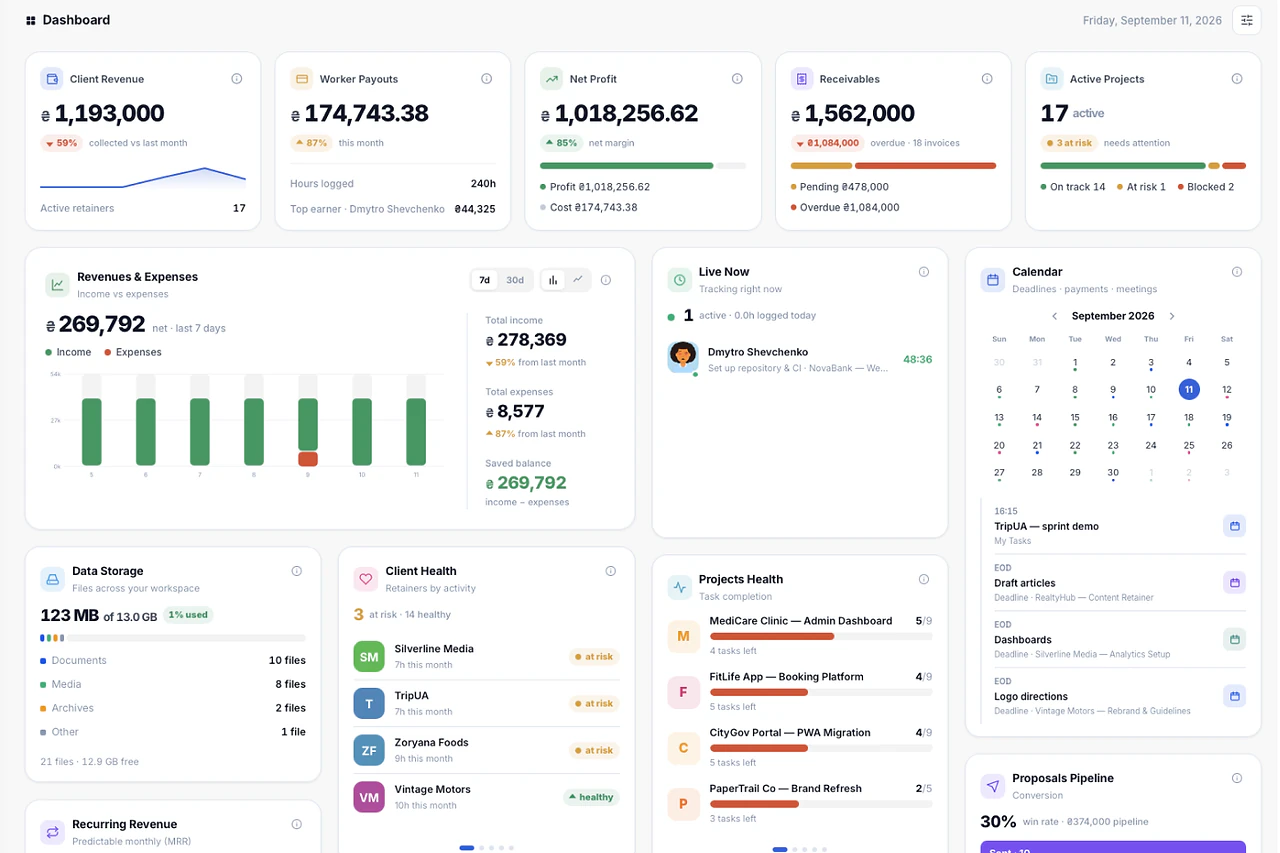
Melororium Drive is the workspace file storage built into every plan. It has three system folders (Clients, Team, and Projects) that automatically mirror files from the matching records. Upload a contract to a client card: it appears in the Clients system folder. Add an attachment to a task: it surfaces in the Projects folder under that project.
Custom folders can be created for assets that don't belong to a specific client or project: brand files, shared templates, company documents. Each folder can be shared with specific team members or left admin-only.
Storage limits: Starter plan 3 GB, Agency plan 9 GB, Studio plan 13 GB. Maximum file size 50 MB. Executable file types are blocked. Downloads use signed URLs: the storage path is never exposed directly.
All plans start at $29/mo flat, with no per-seat charge for adding team members to a shared folder.
In Melororium
Drive & Files in Melororium
Common mistakes with document management
What teams get wrong most often, and what to do instead.
- 1
No consistent folder structure
Letting every project manager organize files their own way.
- 2
Files disconnected from records
Storing a contract as a loose file instead of attached to the client's record.
- 3
No access control by default
Making every file visible to everyone by default.
- 4
Version confusion
Keeping multiple copies of the same file named "final" and "final_v2".
Frequently asked questions
What is the difference between a document management system and cloud storage?
Cloud storage (Google Drive, Dropbox) stores files in folders you create manually. A document management system links files to the work context they belong to (a client, project, or team member) so files surface automatically when you open the related record. DMS adds structure that cloud storage doesn't provide.
How do you organize client documents?
The most practical approach: one folder per client containing all documents related to that client (contracts, briefs, assets, signed proposals). If you use a workspace with linked document management, files uploaded to a client card automatically appear in that client's folder without manual filing.
Who should have access to employee HR documents?
Owner and admins only. HR documents (contracts, tax forms, performance records) contain sensitive information that most team members don't need access to. Role-based access control restricts the Team folder to admin-level users while keeping project and client files accessible to the relevant project team.
What file types should be blocked in a team document system?
Executable and script files pose security risks when shared in a team workspace: .exe, .bat, .cmd, .sh, .msi, .js, .html, .svg. Blocking these at upload prevents accidental or malicious distribution. Documents, images, archives, and media files are typically safe to allow.